Monitoring Portal System Mode Settings
1. Access your Monitoring Portal Dashboard via www.givenergy.cloud and sign in using your username and password.
2. On your Monitoring Portal Dashboard, click on the My Inverter card.
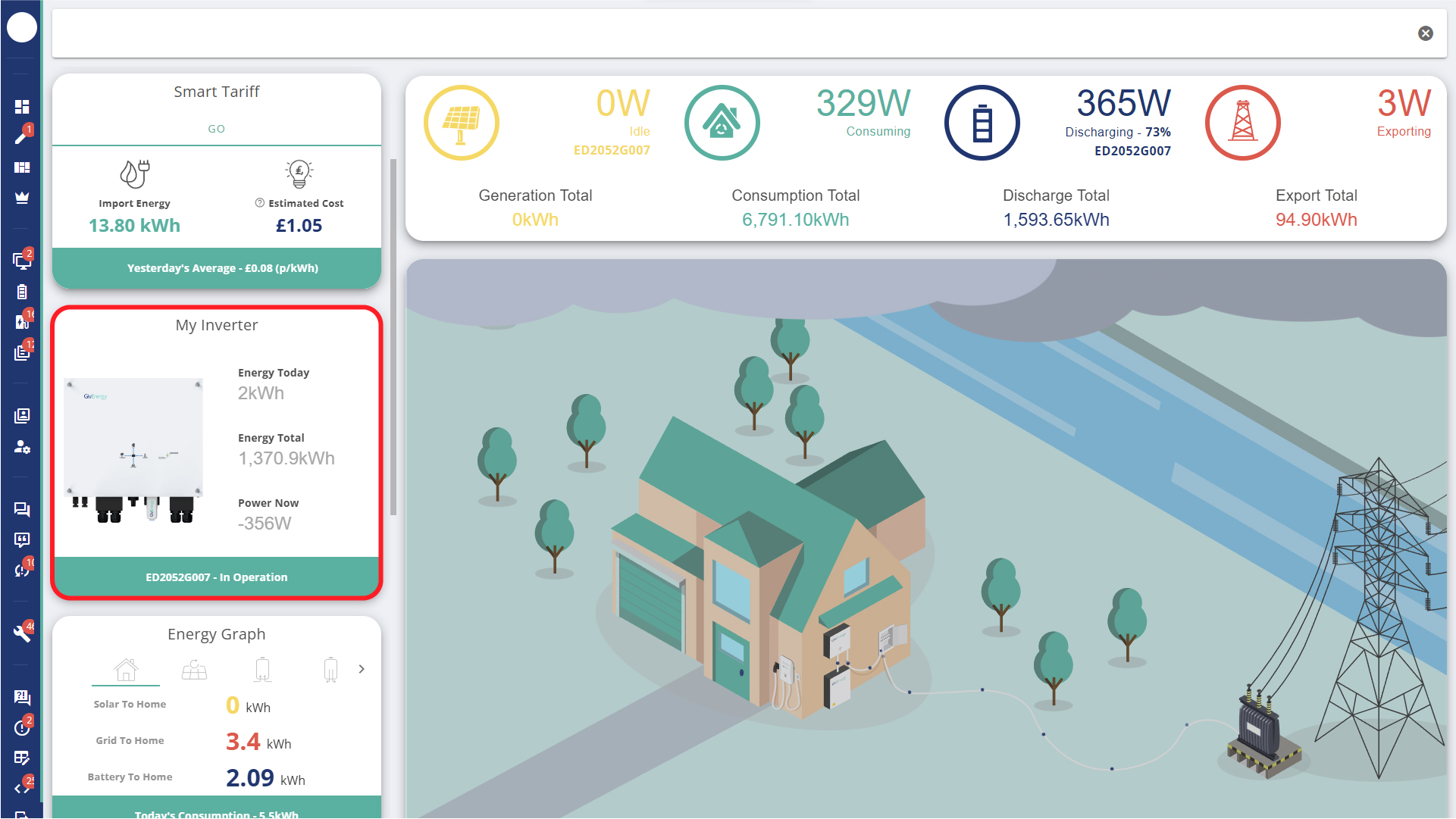
3. Navigate to the System Mode Settings menu.
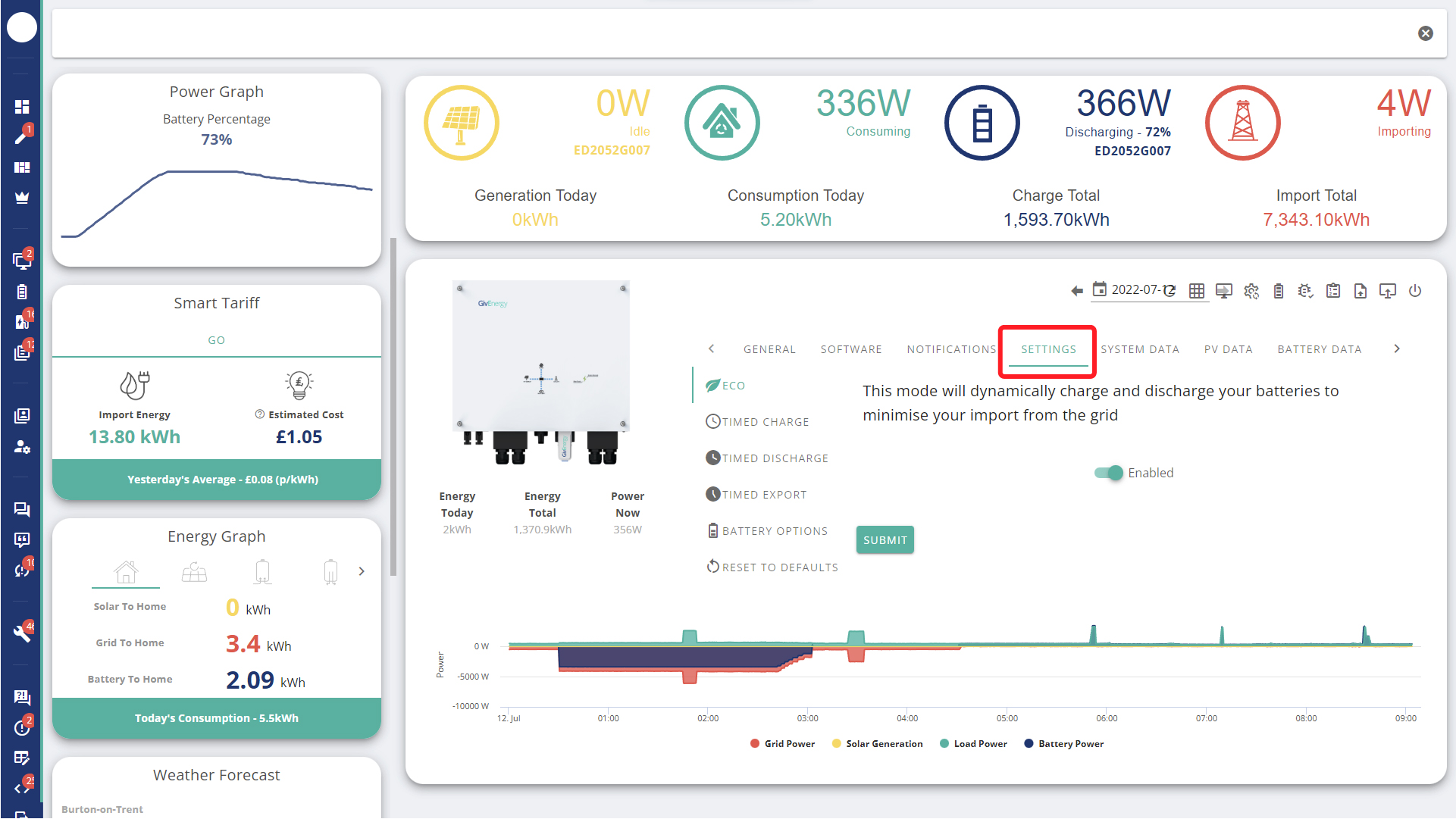
4. Here, you will find the different system modes. You can change your mode by clicking on any of the system modes and pressing Submit.
Eco Mode
This mode will dynamically charge and discharge your batteries to minimise your import from the grid.
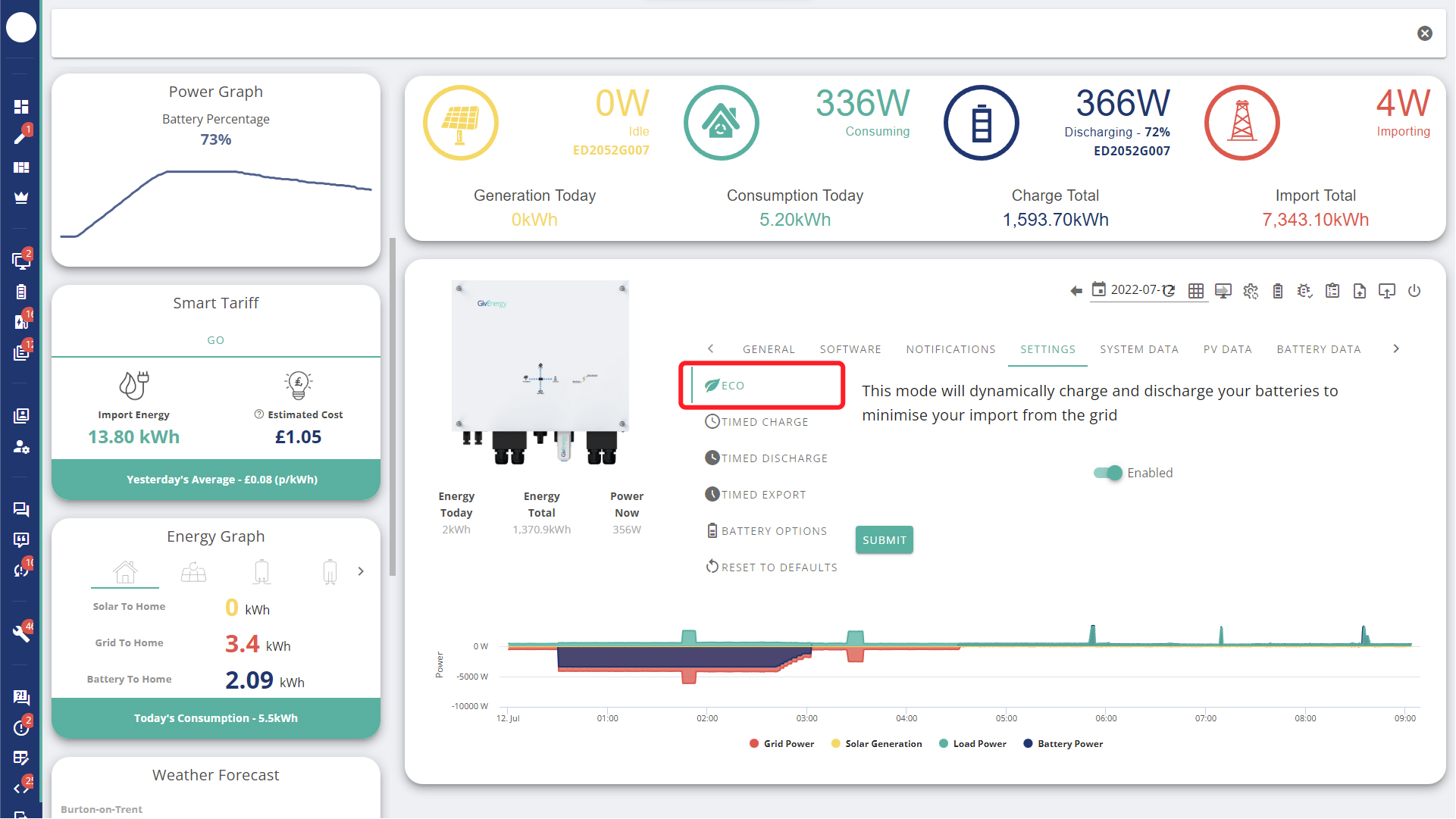
Timed Charge
This mode will force charge your battery from the grid during a period you define.
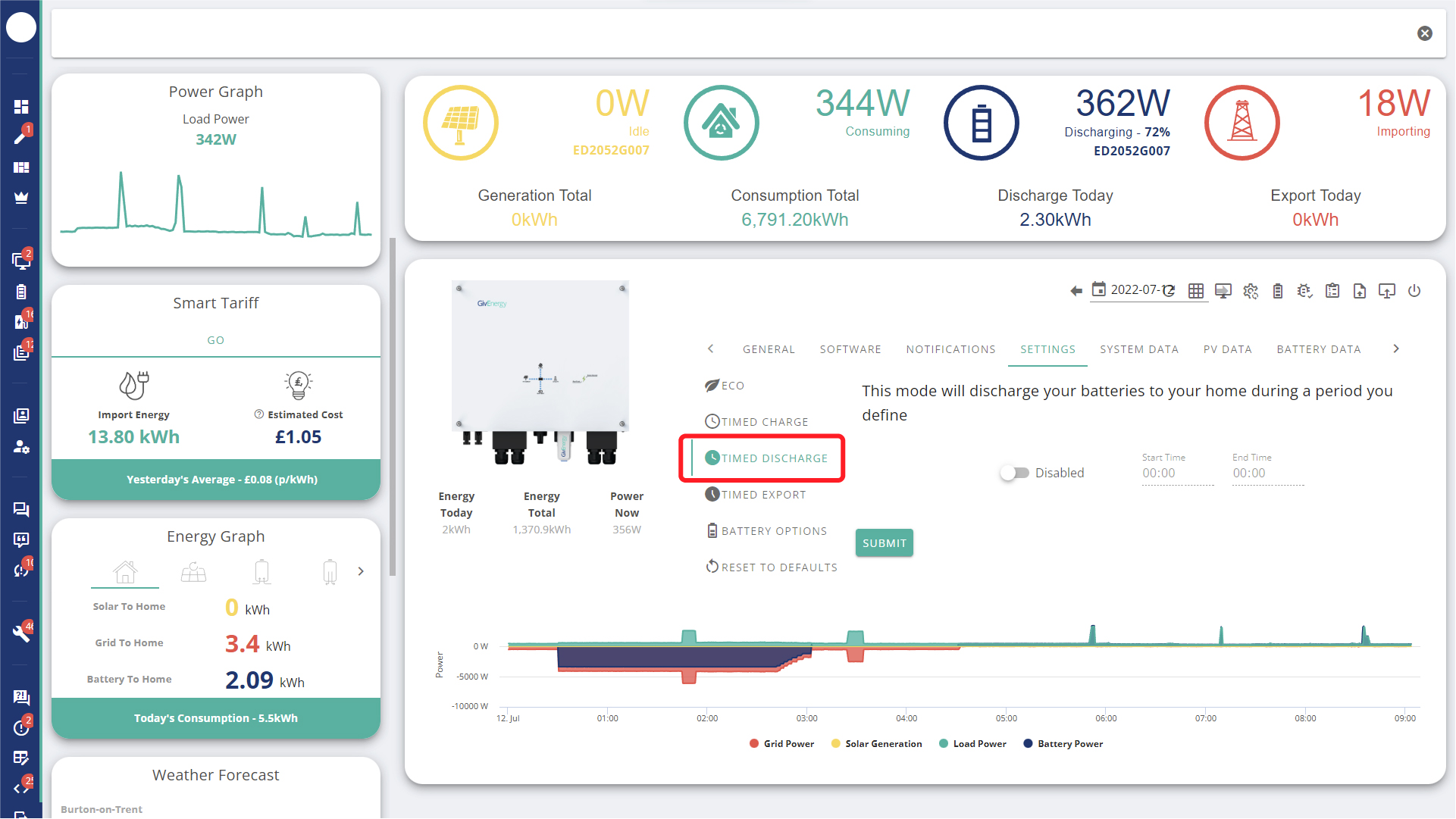
Timed Discharge
This mode will discharge your batteries to your home during a period you define.
Timed Export
This mode will hold your battery power and discharge it at full power during a period you define.
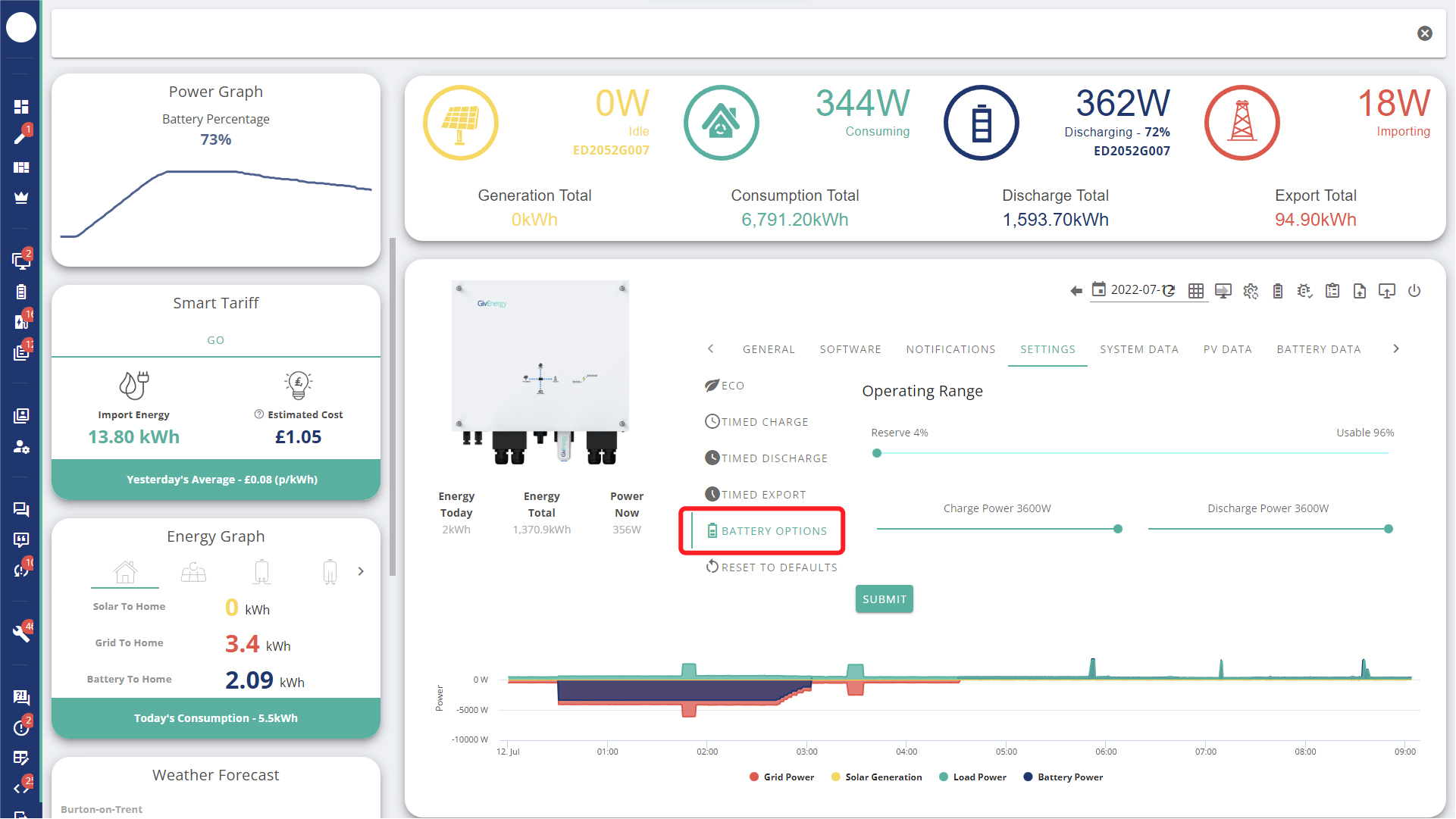
Battery Options
Control your reserve and usable capacity with the Operating Range slider. You can also set your Charge and Discharge Power here.
Reset to Defaults
Selecting this option will restore your settings to the default mode.
Related Articles
Adjust Power Quality Response Mode Setpoints
Power quality response mode includes: Volt-var response mode Volt-watt response mode Fixed power factor mode Reactive power mode Power rate limit mode The AIO supports all of these modes. Setting the Region setpoints Step 1: Log into the GivEnergy ...System Commissioning
System commissioning is a critical phase that ensures the All-in-One system and its associated components are correctly configured and verified for safe and optimal operation before going live. This process must be performed by a qualified technician ...Accessing Monitoring Data on the Portal
Step 1: Log into the GivEnergy Monitoring Portal at www.givenergy.cloud Step 2: After logging in, you’ll be taken to the Monitoring Portal Dashboard. From here, you can view information about your systems import/export data, solar forecasts, tariff ...Generation Control & Export Control Settings
To adjust generation and export control settings: Step 1: Log into the GivEnergy Monitoring Portal at www.givenergy.cloud Step 2: On your portal dashboard, hover over the ‘My Inverter’ card and select the expand icon. Step 3: In the ‘My Inverter’ ...Monitor Your Meter from Portal
Your GivEnergy system uses meter readings to calculate and display energy usage within the app and portal. These readings are generated by the inverter and depend on accurate meter installation and a stable internet connection. Data Calculation in ...