Reconnecting Your GivEnergy System to WiFi
Contents
Before You Start
Goal
Ensure a stable connection for your GivEnergy system and smart devices.
Assumptions
You may have changed router, SSID, or password; you might be using dual-band WiFi.
Best Connectivity Practices
Prefer a Wired Connection
A physical Ethernet cable from the inverter to your router is the most stable and fastest option. If possible, run a cable during installation or afterwards. It avoids WiFi credential issues and reduces dropouts.
Keep the Same WiFi Name and Password
When switching internet provider or router, change the new router’s SSID and password to match your old ones. This lets every device, including the inverter, reconnect automatically without reconfiguration.
Example: set the new router to the old “BT WiFi 1234” and password.
Powerline Adaptor Placement
Powerline adaptors generally work well, but avoid electrical interference by placing the adaptor at least one metre away from the inverter, battery, or EV charger. Use a longer Ethernet lead from the adaptor to the inverter.
Separate Dual-Band WiFi
Routers often combine 2.4 GHz and 5 GHz under one SSID. For stability:
- Put high-bandwidth devices (laptops, TVs, consoles) on 5 GHz.
- Put smart devices (inverters, plugs, doorbells) on 2.4 GHz for better range and wall penetration.
If needed, ask your provider to split the bands or search online for your router instructions.
Use WPA2 on 2.4 GHz
Some newer routers default to WPA3, which many smart devices don’t support. Set the 2.4 GHz network security to WPA2-PSK for compatibility and stability.
How to Connect to Wi-Fi
Connect to the dongle network
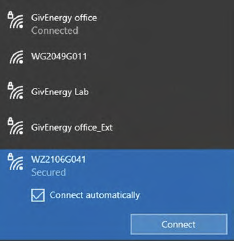
On your device (phone, tablet, or laptop), go to your Wi-Fi settings and find the Wi-Fi network that matches your product or dongle's serial number (e.g. W######). Select it and connect.
Access the dongle interface
Open your internet browser (Google Chrome is recommended). In the address bar, type 10.10.100.254 and press Enter.
Login details:
Username: admin
Password: admin
Set the operating mode
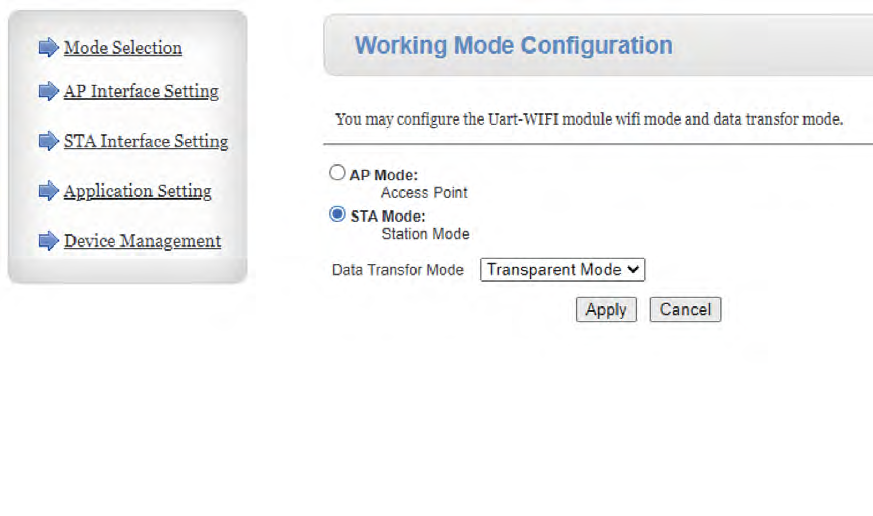
Once logged in, choose STA Mode from the available options and click Apply.
Connect to your home Wi-Fi network
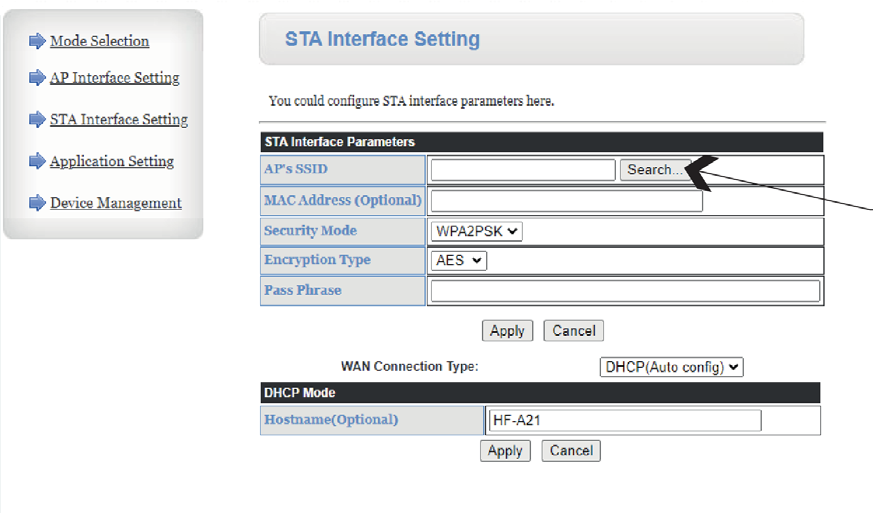
Click on STA Interface Setting.
Click Search next to “AP’s SSID” to scan for nearby networks.
A list of Wi-Fi networks will appear. If your network doesn’t show immediately, refresh the page and try again.
Tip: If the signal strength (RSSI) is below 60%, we recommend using a Wi-Fi extender to maintain a stable connection.
Enter your Wi-Fi credentials
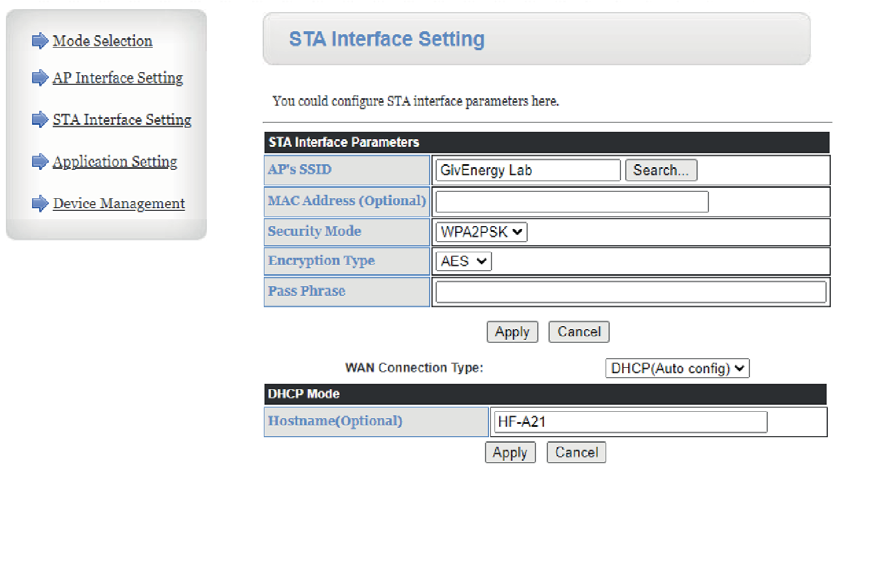
Select your Wi-Fi network from the list and enter your Wi-Fi password.
If your network isn’t listed, you can manually enter the SSID (Wi-Fi name) and password.

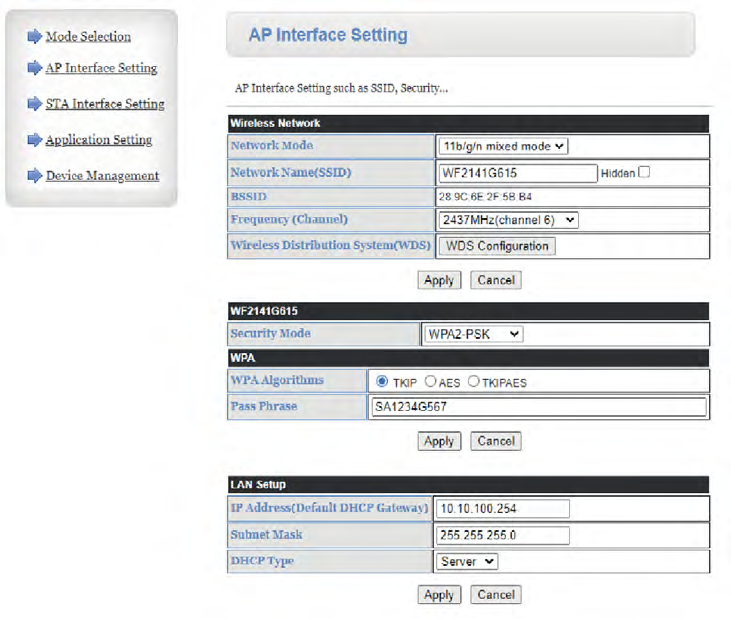
Configure AP Interface Settings
Go to AP Interface Setting.
Set Security Mode to WPA2-PSK.
For the password, we recommend using your inverter’s serial number so it is easy to identify and remember.
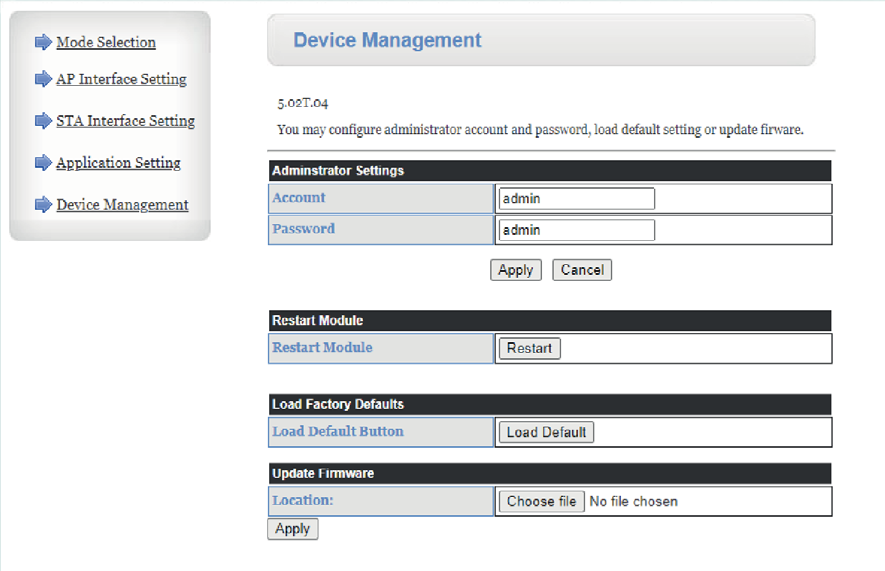
Restart the dongle (if there is an external dongle)
Navigate to the Device Management section and click Restart.
The dongle will now reboot; this can take up to 10 minutes. Once complete, the dongle should be connected to your home Wi-Fi network.
Connect to the dongle network
On your device (phone, tablet, or laptop), go to your Wi-Fi settings and find the Wi-Fi network that matches your product or dongle's serial number (e.g. W######). Select it and connect.
Access the dongle interface
Open your internet browser (Google Chrome is recommended). In the address bar, type 10.10.100.254 and press Enter.
Login details:
Username: admin
Password: admin
Set the operating mode
Once logged in, choose STA Mode from the available options and click Apply.
Connect to your home Wi-Fi network
Click on STA Interface Setting.
Click Search next to “AP’s SSID” to scan for nearby networks.
A list of Wi-Fi networks will appear. If your network doesn’t show immediately, refresh the page and try again.
Tip: If the signal strength (RSSI) is below 60%, we recommend using a Wi-Fi extender to maintain a stable connection.
Enter your Wi-Fi credentials
Select your Wi-Fi network from the list and enter your Wi-Fi password.
If your network isn’t listed, you can manually enter the SSID (Wi-Fi name) and password.
Configure AP Interface Settings
Go to AP Interface Setting.
Set Security Mode to WPA2-PSK.
For the password, we recommend using your inverter’s serial number so it is easy to identify and remember.
Restart the dongle (if there is an external dongle)
Navigate to the Device Management section and click Restart.
The dongle will now reboot; this can take up to 10 minutes. Once complete, the dongle should be connected to your home Wi-Fi network.
For more information or for more specific product guidance, please refer to the sections below, which provide further support for internal WiFi products and external WiFi dongles in the GivEnergy WiFi Guide.
Troubleshooting
Can’t Find SSID or Weak RSSI
Reposition router, reduce obstacles, or add a WiFi extender; target ≥60% RSSI.
Password Errors
Retype carefully; try the connection flow twice to eliminate typos.
Incompatible Security
Ensure 2.4 GHz uses WPA2-PSK, not WPA3.
Dual-Band Confusion
Split SSIDs so you can select the 2.4 GHz network explicitly.
If issues persist after these steps, contact GivEnergy Support.
Related Articles
GivEnergy WiFi Guide
Best Connectivity Practices Is a Wired Connection possible? A physical Ethernet cable from the inverter to your router is the most stable and fastest option. If possible, run a cable during installation or afterwards. It avoids WiFi credential issues ...GivEnergy Battery Troubleshooting Guide
This guide helps you identify and resolve issues with GivEnergy batteries not charging or discharging, and includes instructions for checking settings, clearing external controls, and safely updating firmware. If you are experiencing WiFi or ...What your GivEnergy system does for you
Your new GivEnergy system is designed to help you save money and reduce your carbon footprint by making the most of cheap and green electricity. It does this automatically once installed and connected. Your system works in three main ways: ...GivEnergy EV Charger Troubleshooting Guide
Contents Introduction Objectives Troubleshooting Common Issues and Symptoms Safety and Visual Checks Network Checks (Wi-Fi & LAN) Charger Configuration Check Charger Configuration Types Additional Troubleshooting Tips for Customers EV Charger Fault ...How to Transfer Ownership of a GivEnergy System
If you have recently purchased a property that already has a GivEnergy system installed, you can transfer the system ownership into your name. This ensures you gain full access to the GivEnergy app, portal, performance data, and system controls. What ...